
When we left our hero last, he was in rapture pressing the ‘H’ and ‘L’ keys and seeing an LED on a small electronic device turn on and off. We won’t deign to judge him based on what causes him rapture, but we will continue to explore this miracle of the keys and the lights. See Getting Started with Arduino and XBee (Part 1) for the beginning of this story.
The next step for me was to see if I could get two independent Arduinos talking to each other over XBee. At this point we had one connected to the computer and one running independently. So what was it going to take to make this happen? I would have to have the PhysicalPixel sketch running on the receiver (sender and receiver are arbitrary, but we will go with it) and some kind of sending sketch running on the sender (Duh!). The sender would send an ‘H’ upon some input from the user. That would mean I would have to have both Arduinos with XBee shields running independently. I ran into a bit of a problem here. I didn’t have a second USB cable to power both Arduino’s, so a quick trip to the Home Depot next door was in order.
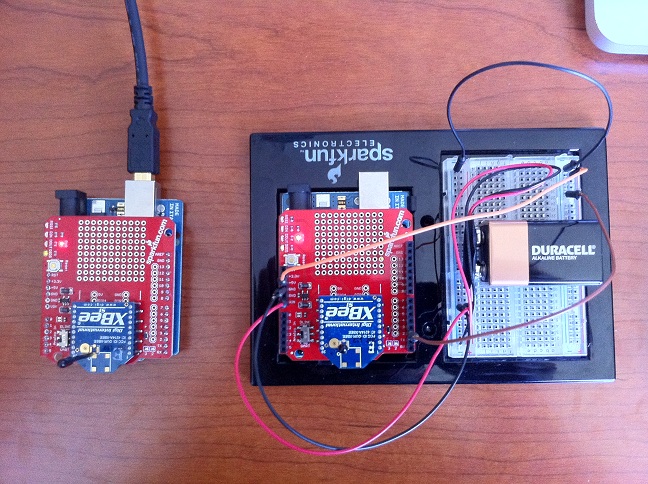
Two XBees Talking
Before I shot off to Home Depot, a quick perusal of my electronic kit bag turned up a 9V power adapter. Now Arduinos work swimmingly with inputs anywhere between 7V and 12V, so a 9V connected to VIN and GND would do the trick nicely. So at Home Depot I picked up a tiny USB hub and some 9V batteries. See previous post on why I needed a USB hub. Hooking everything up gave me what you see in the above picture. With PhysicalPixel running on the left, and a modified StateChangeDetection running on the right, I was able to send ‘H’, ‘L’ from the right Arduino to the left Arduino upon pressing a switch connected to GPIO2. The on-board LED on Arduino on the left would turn on and off in response to these ‘H’s and ‘L’s. This is what is called success, I now had two Arduinos talking to each other without the intervention of the mother computer. It was time for them to fly, but before they could fly, I needed to upgrade their OS’s. I wanted something a little more communicative and inter-operable than the Arduino sketch language – it was time to introduce Node.js. See the upcoming post on Arduino, XBee and Node.js for more fun and frivolity.
UPDATE: I had thought that projects like node-arduino and NoDuino were actually ports or cross compilations of the Node.js environment to the Arduino, but it turns out I was mistaken. They are, instead, ways to control your Arduino from the host computer using Node.js. Not what I wanted at all. I was hoping to have Node.js running natively on the Arduino like an OS. And, well, despite my few hours spent digging around I couldn’t find specs on the footprint of a typical Node.js compiled core. Seeing as it incorporates the Google V8 Engine, however, I’m not holding out very little hope that it will fit in the Arduino’s 32KBof flash storage, 2KB of memory and 1KB of EEPROM. Even the Netduino’s specs seem a little low, although the new Netduino GO might be just enough. Guess I’ll just have to ramp up development on my new Physical Computing Platform or Real World Computer.
UPDATE 2: I will be revisiting my desire to run Node.js as an “operating system” on these micro controllers. I may instead switch over to Netduino technology and use the .NET Micro framework.