Arduinos and Xbees
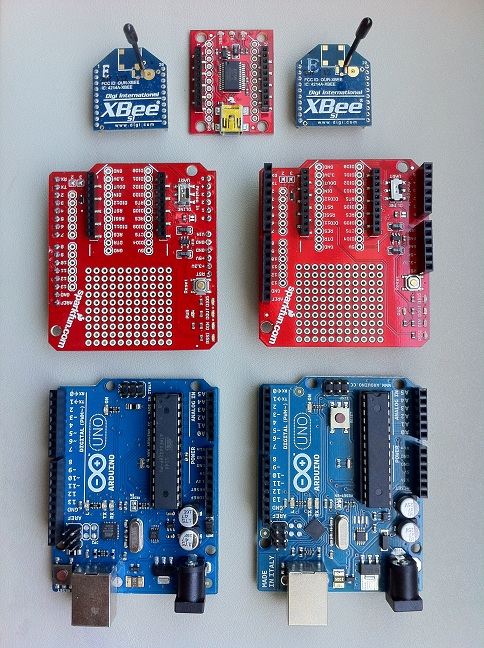
Just sat down today with a couple of Arduino UNO R2s (actually the link is for the R3s, R2s are no longer available) and a couple of XBee Shields from sparkfun.com and a couple of XBee S1 modules (again link is for newer model, the S1 isn’t available anymore) from www.digi.com and wanted to get them talking together. Thought I’d record what I found and how I made it all happen.
I connected one of the XBee shields to one of the Arduino boards, plugged in the XBee module and fired up the Arduino IDE. I loaded File->Examples->Communciaton->Physical Pixel and made sure the switch on the XBee Shield was set to DLINE so the XBee module wouldn’t interfere with the serial communications between the computer and the Arduino. The XBee shield can either run connected to the GPIO of the Atmel chip or connected to the serial I/O lines of the Atmel chip. In this case you want to be able to program the Arduino, so you need to have those Atmel serial lines unmolested by the XBee shield. Set the switch to DLine. I then Uploaded the sketch to the Arduino and saw that the programming lights blinked and everything looked good. Its important at this point to flip that switch back to UART so that anything received by the XBee module gets output to the serial lines connected to the Atmel chip. You won’t be able to program the Arduino while it’s set that way, but that’s ok.
Xbee Explorer and Arduino-Xbee
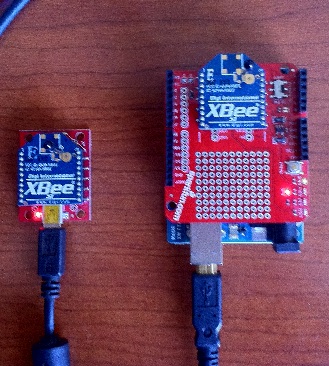
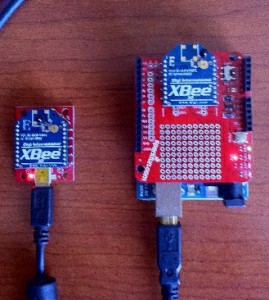
I then connected the other XBee module to the XBee Explorer and plugged in a mini-usb cable that I had lying around. Windows complained that it couldn’t find the drivers for this little guy, so I went Start Menu, typed devmgmt.msc, enter (Device Manager) and told it to Update Drivers for this particular device. It seemed to find a working set of FTDI USB drivers and my XBee Explorer was listed as a USB Serial Converter and marked as working device in Device Manager. Now I needed some software to communicate with it. The program of choice seems to be Digi’s X-CTU software (the makers of the XBee module), but all the links that were listed on Sparkfun were broken. I finally ended up at Digi’s XBee Development Kit, and clicked through to X-CTU Installer to download the X-CTU software for Windows 7 (32 bit, but it works). BTW, my Macbook Pro has only 3 USB ports, so at this point, with an external mouse and keyboard I was forced to keep switching devices to make this all happen. Note to self: make sure to buy a small USB hub. I cannot stand chiclet keyboards and touch pads, so I always carry my TrulyErgonomic keyboard and MS wireless mouse around with me. Yet another side note – with the two XBee modules powered up and talking to each other, my wireless mouse stopped working, so I’m guessing they are both trying to use the 2.4 GHz open frequencies for communication. I’ve heard that this is a problem with XBee stuff in a residential setting where it interferes or gets interfered with by consumer wireless devices. We will see.
After waiting for the 40-some-odd MB of the X-CTU Installer to download, I installed it and everything went fine. With the XBee Explorer still connected I fired up X-CTU and it discovered my XBee module right away. With my Arduino already connected, to COM3, the Explorer came up on COM4 and I selected that under the PC Settings tab of the X-CTU app. I poked around and could see all the Configuration settings for my XBee module and saw a Terminal window, which I assumed would try to send characters out over the XBee. Now it was time for the magic.
So with both XBees now powered up and running, one connected to an Arduino and one connected to the XBee explorer module, and with the PhysicalPixel sketch running on the Arduino XBee and the X-CTU software running and connected to the XBee Explorer module I surmised that if I typed a capital ‘H’ in the Terminal window of X-CTU then the Arduino should receive a capital ‘H’ from it’s XBee module and turn on the on-board LED (this is what the PhysicalPixel sketch does – turns ON the LED when it receives ‘H’ on serial and turns OFF the LED when it receives ‘L’ from the serial port). So I typed ‘H’ in the X-CTU.
Miracle of miracles! The LED on the Arduino turned on! I was almost breathless with excitement, I could not wait for the next sign from God. I typed ‘L’ in the terminal window of the X-CTU app and Lo and Behold! The LED turned off! Ok, enough exclamation points, the tutorials and getting started guides told me that this is what should have happened so I was relieved that things worked the way they should. They rarely seem to do that for me the first time, so this is indeed a small blessing.
Now on to Arduino and Xbee Part 2